This episode is freely available thanks to the support of our subscribers

Subscribers get exclusive access to new and all previous subscriber-only episodes, video downloads, and 30% discount for team members. Become a Subscriber

We replicate our custom matched geometry implementation from an earlier episode using AI and then implement interpolation.

00:06 A while ago, we spent three episodes reimplementing matchedGeometryEffect. It's impossible to reproduce the full magic of Apple's implementation because we always need a container around everything to collect preferences and propagate environment values. Still, the result worked quite well. Today we want to take that implementation - or something slightly simpler - and extend it so we can control the interpolation progress from the outside.

00:43 matchedGeometryEffect essentially works by matching the position and frame of two views. When the match changes and the update is animated, SwiftUI simply animates the frame and position for us, producing what's known as a hero animation. We can't directly control the progress of that interpolation, meaning we can't say that we want to display the state of the matched view at its point halfway through the transition. With a custom implementation, we could attach a slider or gesture to control the progress, or integrate it with something like a keyframe animator.

Generating a Minimal Implementation

01:29 Since we already implemented this before and it took several episodes, we could copy that code and strip out the parts we don't need. Another option is to type a minimal version again from scratch. Instead, we'll give the LLM another chance and ask it to generate a basic implementation. If we can get it to do that, we can then extend it manually.

01:59 We keep the LLM on a fairly tight leash. The prompt describes the minimal API we want:

"We want to reimplement matched geometry effect. Please create placeholder methods. We need a view modifier for the implementation. We want to have a simpler interface, just a string ID, a Boolean for isSource, but no properties, no anchor, and no namespace."

02:47 The idea is to first generate a basic outline and then refine it. There are two important cases to consider inside the implementation. When isSource is true, the modifier should propagate the bounds upward using a preference. The payload of that preference should contains the ID and an anchor of the bounds. When isSource is false, the modifier reads geometry values from the environment, finds the matching ID, and applies the corresponding frame and position to the content view.

03:36 The LLM starts generating code but goes down the wrong path because it got distracted by other code in our project. We stop it, delete the generated code, and try again, adding: "Ignore the Picker.swift file, it's for later."

04:10 The new attempt produces a modifier with id and isSource, and a helper function that calls the modifier:

private struct MatchedGeometryEffectModifier: ViewModifier {
    let id: String
    let isSource: Bool

    func body(content: Content) -> some View {
        content
    }
}

extension View {
    func matchedGeometryEffect(id: String, isSource: Bool) -> some View {
        modifier(MatchedGeometryEffectModifier(id: id, isSource: isSource))
    }
}

04:18 We can already compare this to the real matchedGeometryEffect. To do so, we create a namespace and apply the built-in API:

struct ContentView: View {
    @Namespace var namespace
    
    var body: some View {
        VStack {
            Image(systemName: "globe")
                .imageScale(.large)
                .foregroundStyle(.tint)
                .matchedGeometryEffect(id: "globe", in: namespace, isSource: true)
            Text("Hello, world!")
            Color.yellow
                .frame(width: 50, height: 50)
                .matchedGeometryEffect(id: "globe", in: namespace, isSource: false)
        }
        .padding(50)
    }
}

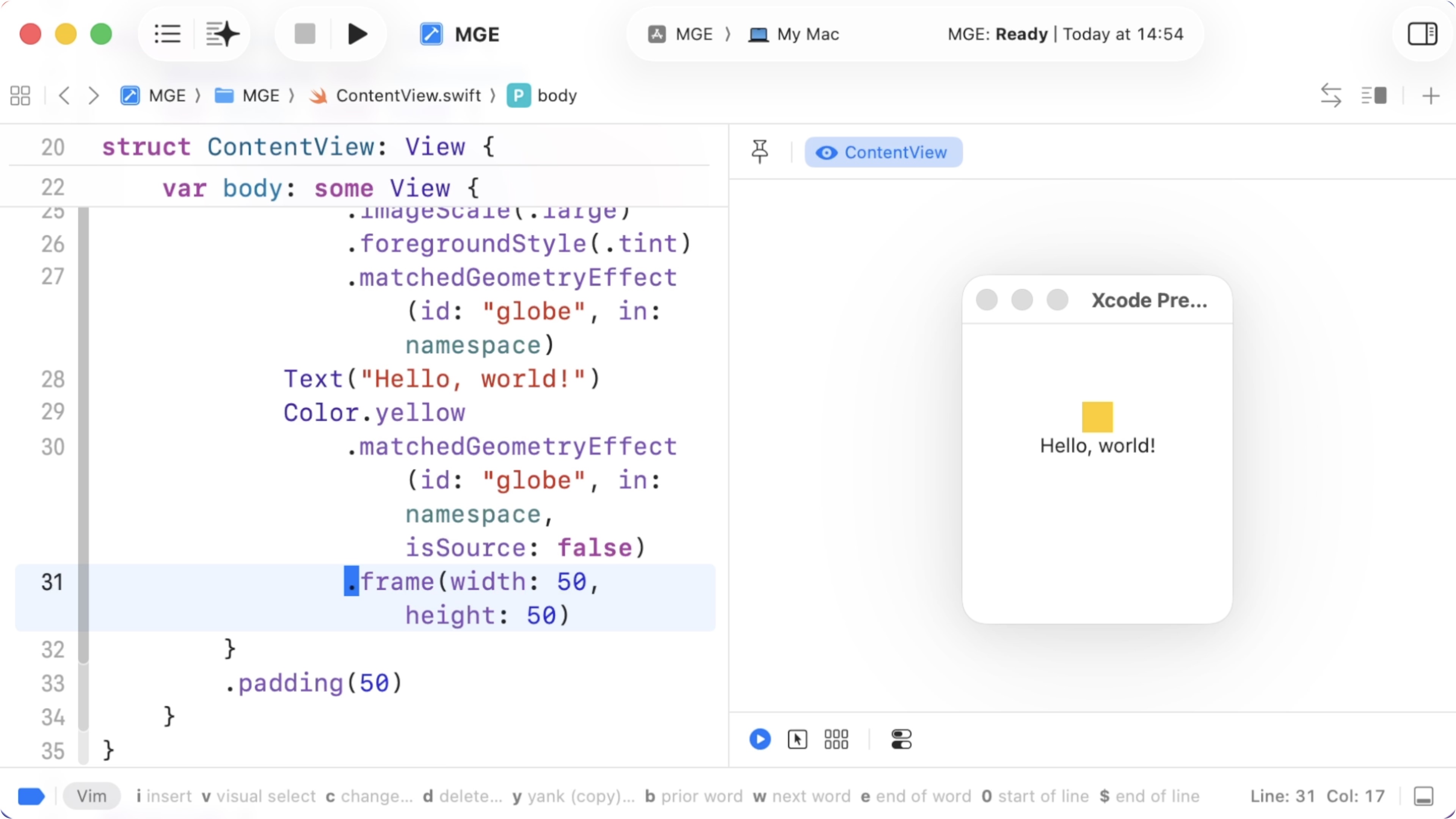
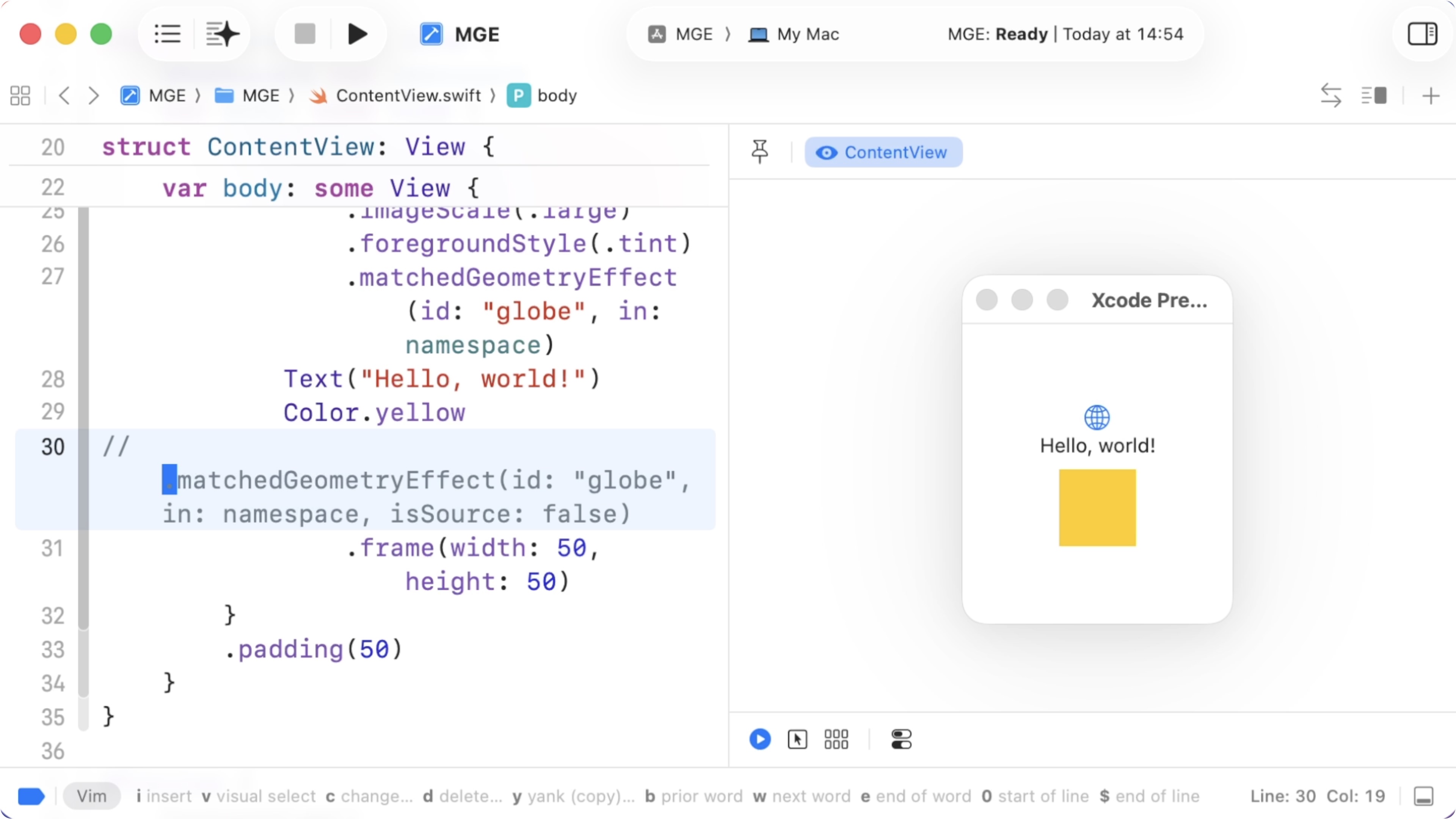
05:10 When we run the preview, we notice that the yellow rectangle doesn't exactly match the globe. The mismatch comes from where the modifier is applied in the hierarchy. Once we move the matched geometry effect before the frame modifier, the rectangle matches the globe icon exactly:

05:26 Without the matchedGeometryEffect, the result looks like this:

05:31 At this point we only have the basic structure. Our reimplementation doesn't do anything yet. The next step is to fill in the real logic.

Implementing Source and Target Behavior

05:54 We continue our conversation by describing the two paths:

"When isSource is true, propagate the bounds plus an ID up using a preference. When isSource is false, read the bounds from the environment and use frame and position modifiers to position and size the content view. We'll also need a container view that reads all the values, stores them in a state property and passes them down the tree using the environment."

06:57 The model now generates a whole lot of code and it appears to rely on global coordinate frames, which we don't want. Anchors would simplify the implementation:

private let matchedGeometrySpaceName = "MatchedGeometryContainerSpace"

private struct MatchedGeometryBoundsPreferenceKey: PreferenceKey {
    static var defaultValue: [String: CGRect] = [:]
    
    static func reduce(value: inout [String : CGRect], nextValue: () -> [String : CGRect]) {
        value.merge(nextValue(), uniquingKeysWith: { _, new in new })
    }
}

private struct MatchedGeometryBoundsKey: EnvironmentKey {
    static let defaultValue: [String: CGRect] = [:]
}

private extension EnvironmentValues {
    var matchedGeometryBounds: [String: CGRect] {
        get { self[MatchedGeometryBoundsKey.self] }
        set { self[MatchedGeometryBoundsKey.self] = newValue }
    }
}

private struct MatchedGeometryContainer<Content: View>: View {
    @State private var bounds: [String: CGRect] = [:]
    private let content: Content
    
    init(@ViewBuilder content: () -> Content) {
        self.content = content()
    }
    
    var body: some View {
        content
            .environment(\.matchedGeometryBounds, bounds)
            .coordinateSpace(name: matchedGeometrySpaceName)
            .onPreferenceChange(MatchedGeometryBoundsPreferenceKey.self) { newValue in
                bounds = newValue
            }
    }
}

// ...

07:32 We ask it to switch to propagating Anchor<CGRect> values instead of using a global coordinate space. We can resolve the anchors locally using a GeometryReader. And since we don't want to change layout, the geometry reader should live inside an overlay on the content view.

08:44 When we tell the agent to use the @Entry macro, it can remove the environment key again. And we can get rid of a second environment entry, because we don't need to pass down any resolved values, since we'll be resolving the anchors locally.

09:42 At this point the implementation should already produce some visible behavior. We rename the modifier to myMatchedGeometryEffect and try it out:

extension View {
    func myMatchedGeometryEffect(id: String, isSource: Bool) -> some View {
        modifier(MatchedGeometryEffectModifier(id: id, isSource: isSource))
    }
}

struct ContentView: View {
    var body: some View {
        MatchedGeometryContainer {
            VStack {
                Image(systemName: "globe")
                    .imageScale(.large)
                    .foregroundStyle(.tint)
                    .myMatchedGeometryEffect(id: "globe", isSource: true)
                Text("Hello, world!")
                Color.yellow
                    .myMatchedGeometryEffect(id: "globe", isSource: false)
                    .frame(width: 50, height: 50)
            }
            .padding(50)
        }
    }
}

10:18 The size of the rectangle matches that of the globe icon, but its position doesn't. The issue comes from applying the layout changes directly to the content view of the matched geometry effect. Instead, we need to hide the original content view and display a copy with the new geometry values in an overlay:

private struct MatchedGeometryEffectModifier: ViewModifier {
    let id: String
    let isSource: Bool
    @Environment(\.matchedGeometryBounds) private var bounds

    func body(content: Content) -> some View {
        if isSource {
            content.anchorPreference(key: MatchedGeometryBoundsPreferenceKey.self, value: .bounds) { anchor in
                [id: anchor]
            }
        } else if let anchor = bounds[id] {
            content
                .hidden()
                .overlay {
                    GeometryReader { proxy in
                        let rect = proxy[anchor]
                        content
                            .frame(width: position.size.width, height: position.size.height)
                            .position(x: position.midX, y: position.midY)
                    }
                }
        } else {
            content
        }
    }
}

Controlling Progress Externally

11:54 Now that the basic effect works, we can experiment with controlling the interpolation. We add a state property called progress and we bind it to a slider ranging from 0 to 1:

struct ContentView: View {
    @State private var progress: Double = 1
    
    var body: some View {
        MatchedGeometryContainer {
            VStack {
                Image(systemName: "globe")
                    .imageScale(.large)
                    .foregroundStyle(.tint)
                    .myMatchedGeometryEffect(id: "globe", isSource: true)
                Text("Hello, world!")
                Color.yellow
                    .myMatchedGeometryEffect(id: "globe", isSource: false, progress: progress)
                    .frame(width: 50, height: 50)
                Slider(value: $progress, in: 0...1)
            }
            .padding(50)
        }
    }
}

12:46 We pass the progress value into the target modifier. The modifier now takes a progress parameter with a default value of 1:

extension View {
    func myMatchedGeometryEffect(id: String, isSource: Bool, progress: Double = 1) -> some View {
        modifier(MatchedGeometryEffectModifier(id: id, isSource: isSource, progress: progress))
    }
}

13:28 Inside the modifier, we currently resolve the target rectangle and immediately apply it. Instead, we want to interpolate between the source rectangle and the target rectangle using the progress value.

14:21 The current geometry reader already gives us the target frame. The source frame can be obtained from the proxy as well. We interpolate between them using the Animatable capabilities of CGRect:

private struct MatchedGeometryEffectModifier: ViewModifier {
    let id: String
    let isSource: Bool
    let progress: Double
    @Environment(\.matchedGeometryBounds) private var bounds

    func body(content: Content) -> some View {
        if isSource {
            content.anchorPreference(key: MatchedGeometryBoundsPreferenceKey.self, value: .bounds) { anchor in
                [id: anchor]
            }
        } else if let anchor = bounds[id] {
            content
                .hidden()
                .overlay {
                    GeometryReader { proxy in
                        var sourceRect = proxy.frame(in: .local)
                        let targetRect = proxy[anchor]
                        sourceRect.animatableData.interpolate(towards: targetRect.animatableData, amount: progress)
                        return content
                            .frame(width: sourceRect.size.width, height: sourceRect.size.height)
                            .position(x: sourceRect.midX, y: sourceRect.midY)
                    }
                }
        } else {
            content
        }
    }
}

16:54 Now the slider controls the interpolation. Moving the slider lets us transition smoothly between the original and the target position.

Driving the Effect with Keyframes

17:08 With manual interpolation working, the next step is to do something practical with it. For this, we prepared a Picker example that already relies on the built-in matchedGeometryEffect. Each picker item acts as a source, and the underline view is the target:

struct Item: Identifiable {
    let id: String
    let title: String
}

struct Picker: View {
    @State private var selection: String?
    var items = ["Inbox", "Sent", "Archive"].map { Item(id: $0, title: $0) }

    var body: some View {
        let selectedItem = selection ?? items[0].id
        HStack {
            ForEach(items) { item in
                Button(item.title) {
                    selection = item.id
                }
                .padding(.bottom, 4)
                .myMatchedGeometryEffect(id: item.id, isSource: true)
            }
        }
        .overlay {
            Color.accentColor
                .frame(height: 1)
                .frame(maxHeight: .infinity, alignment: .bottom)
                .myMatchedGeometryEffect(id: selectedItem, isSource: false)
        }
        .buttonStyle(.plain)
        .animation(.default, value: selectedItem)
    }
}

18:02 We wrap everything in the generated container that collects the preferences and distributes them via the environment. In the future, we could move this container into a view modifier, which would be a more elegant API than the view builder further indenting our view tree:

struct Picker: View {
    @State private var selection: String?
    var items = ["Inbox", "Sent", "Archive"].map { Item(id: $0, title: $0) }

    var body: some View {
        let selectedItem = selection ?? items[0].id
        MatchedGeometryContainer {
            HStack {
                ForEach(items) { item in
                    Button(item.title) {
                        selection = item.id
                    }
                    .padding(.bottom, 4)
                    .myMatchedGeometryEffect(id: item.id, isSource: true)
                }
            }
            .overlay {
                Color.accentColor
                    .frame(height: 1)
                    .frame(maxHeight: .infinity, alignment: .bottom)
                    .myMatchedGeometryEffect(id: selectedItem, isSource: false, progress: progress)
            }
            .buttonStyle(.plain)
            .animation(.default, value: selectedItem)
        }
    }
}

18:41 The underline already animates because SwiftUI automatically animates frame changes. However, we can remove the standard animation and instead drive the effect with a keyframeAnimator triggered by selection changes:

struct Picker: View {
    @State private var selection: String?
    var items = ["Inbox", "Sent", "Archive"].map { Item(id: $0, title: $0) }

    var body: some View {
        let selectedItem = selection ?? items[0].id
        MatchedGeometryContainer {
            HStack {
                ForEach(items) { item in
                    Button(item.title) {
                        selection = item.id
                    }
                    .padding(.bottom, 4)
                    .myMatchedGeometryEffect(id: item.id, isSource: true)
                }
            }
            .overlay {
                Color.accentColor
                    .frame(height: 1)
                    .frame(maxHeight: .infinity, alignment: .bottom)
                    .keyframeAnimator(
                        initialValue: 1,
                        trigger: selectedItem,
                        content: { content, progress in
                            content
                                .myMatchedGeometryEffect(id: selectedItem, isSource: false, progress: progress)
                        },
                        keyframes: { _ in
                            CubicKeyframe(1, duration: 1)
                        }
                    )
            }
            .buttonStyle(.plain)
        }
    }
}

20:22 Initially nothing animates because the progress remains constant. We add a keyframe that moves the progress to 0, before animating back to 1:

// ...
keyframes: { _ in
    MoveKeyframe(0)
    CubicKeyframe(1, duration: 1)
}
// ...

20:42 The animation now jumps back to the full-width underline before moving to the selected item. That happens because our interpolation always starts from the original frame rather than the previous position. To fix this, we need to store the last known rect before the ID of the matched geometry effect changes. Instead of always starting from the source frame, the interpolation should begin from the stored position.

22:08 We add a state property, currentRect, to track the current rect and we update it whenever the source rect changes, using onChange(of:). Then, when the ID changes, we copy currentRect into a new state property, sourceRect:

private struct MatchedGeometryEffectModifier: ViewModifier {
    let id: String
    let isSource: Bool
    let progress: Double
    @Environment(\.matchedGeometryBounds) private var bounds
    @State private var currentRect: CGRect?
    @State private var sourceRect: CGRect?

    func body(content: Content) -> some View {
        if isSource {
            content.anchorPreference(key: MatchedGeometryBoundsPreferenceKey.self, value: .bounds) { anchor in
                [id: anchor]
            }
        } else if let anchor = bounds[id] {
            content
                .hidden()
                .overlay {
                    GeometryReader { proxy in
                        var position = sourceRect ?? proxy.frame(in: .local)
                        let targetRect = proxy[anchor]
                        position.animatableData.interpolate(towards: targetRect.animatableData, amount: progress)
                        return content
                            .frame(width: position.size.width, height: position.size.height)
                            .position(x: position.midX, y: position.midY)
                            .onChange(of: position, initial: true) {
                                currentRect = position
                            }
                            .onChange(of: id, initial: true) {
                                sourceRect = currentRect
                            }
                    }
                }
        } else {
            content
        }
    }
}

23:45 The interpolation now uses either the current rect — or, if the current rect hasn't been stored yet, the original source view's frame — as its starting point.

24:30 We notice that the order of the onChange handlers affects the result. Currently, the interpolation still goes back to the original frame. But if we reverse the order, the animation works correctly and it interpolates from the current to the new position:

// ...
return content
    .frame(width: position.size.width, height: position.size.height)
    .position(x: position.midX, y: position.midY)
    .onChange(of: id, initial: true) {
        sourceRect = currentRect
    }
    .onChange(of: position, initial: true) {
        currentRect = position
    }
// ...

26:03 Depending on the execution order of onChange modifiers isn't ideal. A better solution would combine these handlers into a single change observer, so that we can look at both the ID and the current position, and decide how the state properties should be updated.

Playing with Keyframes

26:41 Now that we control the progress of the transition, we can experiment with more interesting keyframes. For example, we can overshoot the target by going to 1.2, then compress back to 0.8, and finally settle at 1:

struct Picker: View {
    @State private var selection: String?
    var items = ["Inbox", "Sent", "Archive"].map { Item(id: $0, title: $0) }

    var body: some View {
        let selectedItem = selection ?? items[0].id
        MatchedGeometryContainer {
            HStack {
                ForEach(items) { item in
                    Button(item.title) {
                        selection = item.id
                    }
                    .padding(.bottom, 4)
                    .myMatchedGeometryEffect(id: item.id, isSource: true)
                }
            }
            .overlay {
                Color.accentColor
                    .frame(height: 1)
                    .frame(maxHeight: .infinity, alignment: .bottom)
                    .keyframeAnimator(
                        initialValue: 1,
                        trigger: selectedItem,
                        content: { content, progress in
                            content
                                .myMatchedGeometryEffect(id: selectedItem, isSource: false, progress: progress)
                        },
                        keyframes: { _ in
                            MoveKeyframe(0)
                            CubicKeyframe(1.2, duration: 1)
                            CubicKeyframe(0.8, duration: 0.3)
                            CubicKeyframe(1, duration: 0.3)
                        }
                    )
            }
            .buttonStyle(.plain)
        }
    }
}

27:25 The timing still needs tuning, but the effect is clear. Because we control the progress ourselves, we can create any kind of animation we want. We could also compress the line's width as it changes its length, or do other fun stuff.

27:49 It would be nice if SwiftUI eventually offered this kind of progress control directly in matchedGeometryEffect. Until then, a custom implementation provides a lot of flexibility. And it allows us to keep experimenting with LLM-generated code, providing the scaffolding we combine with manual adjustments. The remaining issue with the onChange handling could still be improved, but that's something we can leave as an exercise.

Resources

  • Sample Code

    Written in Swift 6.2

  • Episode Video

    Become a subscriber to download episode videos.

In Collection

213 Episodes · 74h22min

See All Collections

Episode Details

Recent Episodes

See All

Unlock Full Access

Subscribe to Swift Talk

  • Watch All Episodes

    A new episode every week

  • icon-benefit-download Created with Sketch.

    Download Episodes

    Take Swift Talk with you when you're offline

  • Support Us

    With your help we can keep producing new episodes